
General usage of PPTP tunnels:
PPTP includes PPP authentication and accounting for each PPTP connection. Full authentication and accounting of each connection may be done through a RADIUS client or locally. There are also additional PPP configurations for management of users and connections can be found in General Point to Point Settings manual.
MPPE 40bit RC4 and MPPE 128bit RC4 encryption are supported.
PPTP traffic uses TCP port 1723 and IP protocol ID 47, as assigned by the Internet Assigned Numbers Authority (IANA). PPTP can be used with most firewalls and routers by enabling traffic destined for TCP port 1723 and protocol 47 traffic to be routed through the firewall or router.
PPTP connections may be limited or impossible to setup though a
masqueraded/NAT IP connection. Please see the Microsoft and RFC links
at the end of this section for more information.
PPTP Client Setup
Each PPTP connection is composed of a server and a client.
The MikroTik RouterOS may function as a server or client –
or, for various configurations, it may be the server for
some connections and client for other connections.
For example, the client created below could connect to a Windows 2000 server,
another MikroTik Router, or another router which supports a PPTP server.
The PPTP client management can be accessed under the /interface pptp-client submenu.
You can add a PPTP client using the add command:
[admin@MikroTik] interface pptp-client> add
creates new item with specified property values.
  add-default-route
         connect-to  PPTP server address
          copy-from  item number
           disabled
                mru  Maximum Receive Unit
                mtu  Maximum Transfer Unit
               name  New interface name
           password
            profile
               user  User name to use for dialout
[admin@MikroTik] interface pptp-client> add name=test2 connect-to=10.1.1.12 \
\... user=john add-default-route=yes password=john
[admin@MikroTik] interface pptp-client> print
Flags: X - disabled, R - running
  0 X  name="test2" mtu=1460 mru=1460 connect-to=10.1.1.12 user="john"
       password="john" profile=default add-default-route=yes


[admin@MikroTik] interface pptp-client> enable 0
[admin@MikroTik] interface pptp-client> monitor test2
      uptime: 0s
    encoding:
      status: Terminated

[admin@MikroTik] interface pptp-client>
Descriptions of settings:
name - interface name for reference
mtu - Maximum Transmit Unit. The optimal value is the MTU of the interface the tunnel is working over decreased by 40 (so, for 1500-byte ethernet link, set the MTU to 1460 to avoid fragmentation of packets)
mru - Maximum Receive Unit. The optimal value is the MTU of the interface the tunnel is working over decreased by 40 (so, for 1500-byte ethernet link, set the MRU to 1460 to avoid fragmentation of packets)
connect-to - the IP address of the PPTP server to connect to
user - user name to use when logging on to the remote server
password - user password to use when logging to the remote server
profile - profile to use when connecting to the remote server
add-default-route - When the PPTP connection is up, the default route (gateway) will be added using as gateway the other side of the PPP link.
If the PPTP client is configured properly and it has established a connection to the server, you can:
[admin@MikroTik] interface pptp-client> monitor test2
      uptime: 4h35s
    encoding: MPPE 128 bit, stateless
      status: Connected
[admin@MikroTik] interface pptp-client>
Description of display:
uptime - Connection time displayed in days, hours, minutes, and seconds
encoding - Encryption being used in this connection
status - The status of this client may be:
- Dialing – attempting to make a connection
- Verifying password... - connection has been established to the server, password verification in progress
- Connected – self-explanatory
- Terminated – interface is not enabled or the other side will not establish a connection
The PPTP server management can be accessed under the /interface pptp-server server submenu.
You can enable the PPTP server using the set command:
[admin@MikroTik] interface pptp-server>
Tunneling means encapsulating data of one protocol type within another
protocol and sending it over a channel that understands the encapsulating
protocol. This particular tunneling driver implements encapsulation of PPP
within IP. See also general ppp server settings.

    print  Show PPTP interfaces
      get  get value of item's property
     find  Find interfaces
      set  Change interface properties
      add  create new item
   remove  Remove interface
   enable  enables items
  disable  disables items
   server
   export
[admin@MikroTik] interface pptp-server> server
[admin@MikroTik] interface pptp-server server>

   print
     get  get value of property
     set
  export
[admin@MikroTik] interface pptp-server server> print
            enabled: no
                mtu: 1460
                mru: 1460
     authentication: mschap2
    default-profile: default
[admin@MikroTik] interface pptp-server server> set enabled=yes
[admin@MikroTik] interface pptp-server server> print
            enabled: yes
                mtu: 1460
                mru: 1460
     authentication: mschap2
    default-profile: default
[admin@MikroTik] interface pptp-server server>
Descriptions of settings:
enabled - defines whether PPTP server is enabled or not
mtu - Maximum Transmit Unit. The optimal value is the MTU of the interface the tunnel is working over decreased by 40 (so, for 1500-byte ethernet link, set the MTU to 1460 to avoid fragmentation of packets)
mru - Maximum Receive Unit. The optimal value is the MTU of the interface the tunnel is working over decreased by 40 (so, for 1500-byte ethernet link, set the MTU to 1460 to avoid fragmentation of packets)
authentication - authentication algorithm. One or more from: mschap2, chap, pap
default-profile - default profile to use
Please consult General Point to Point Settings manual on authorization, filtering and accounting settings.
There are two types of items in PPTP server configuration - static users and dynamic connections. A dynamic connection can be established when the default-profile parameter is set to the profile, which have its local-address and remote-address set correctly. When static users are added, the default profile may be left with its default values and only P2P user (in /ppp secret) should be configured. Static users may be added as follows:
[admin@MikroTik] interface pptp-server> add
creates new item with specified property values.
  copy-from  item number
   disabled
       name  New interface name
       user
[admin@MikroTik] interface pptp-server> add user=ex1
[admin@MikroTik] interface pptp-server> print
Flags: X - disabled, D - dynamic, R - running
  #     NAME                 USER         MTU   CLIENT-ADDRESS  UPTIME   ENC...
  0  DR <pptp-ex>            ex           1460  10.0.0.202      6m32s    none
  1     pptp-in1             ex1
[admin@MikroTik] interface pptp-server>
Note that in both cases P2P users must be configured properly.
Description of the printout:
name - interface nameIf the PPTP server is configured properly and it has established connections with the clients, you can:
user - the name of the user that is configured statically or added dynamically
mtu - shows (cannot be set here) client's MTU
client-address - shows (cannot be set here) the IP of the connected client
uptime - shows how long the client is connected
encryption - shows (cannot be set here) what encryption algorithm is used for the link
There are two routers in this example:
On the PPTP server a user must be set up for the client:
[admin@HomeOffice] ppp secret> add name=ex service=pptp password=lkjrht
local-address=10.0.103.1 remote-address=10.0.103.2
[admin@HomeOffice] ppp secret> print detail
Flags: X - disabled
  0   name="ex" service=pptp caller-id="" password="lkjrht" profile=default
      local-address=10.0.103.1 remote-address=10.0.103.2 routes==""

[admin@HomeOffice] ppp secret>
Then the user should be added in the PPTP server list:
[admin@HomeOffice] interface pptp-server> add user=ex
[admin@HomeOffice] interface pptp-server> print
Flags: X - disabled, D - dynamic, R - running
  #     NAME                 USER         MTU   CLIENT-ADDRESS  UPTIME   ENC...
  0     pptp-in1             ex
[admin@HomeOffice] interface pptp-server>
And finally, the server must be enabled:
[admin@HomeOffice] interface pptp-server server> set enabled=yes
[admin@HomeOffice] interface pptp-server server> print
            enabled: yes
                mtu: 1460
                mru: 1460
     authentication: mschap2
    default-profile: default
[admin@HomeOffice] interface pptp-server server>
Add a PPTP client to the RemoteOffice router:
[admin@RemoteOffice] interface pptp-client> add connect-to=192.168.80.1 user=ex \
\... password=lkjrht disabled=no
[admin@RemoteOffice] interface pptp-client> print
Flags: X - disabled, R - running
  0  R name="pptp-out1" mtu=1460 mru=1460 connect-to=192.168.80.1 user="ex"
       password="lkjrht" profile=default add-default-route=no


[admin@RemoteOffice] interface pptp-client>
Thus, a PPTP tunnel is created between the routers. This tunnel is like an Ethernet point-to-point connection between the routers with IP addresses 10.0.103.1 and 10.0.103.2 at each router. It enables 'direct' communication between the routers over third party networks.
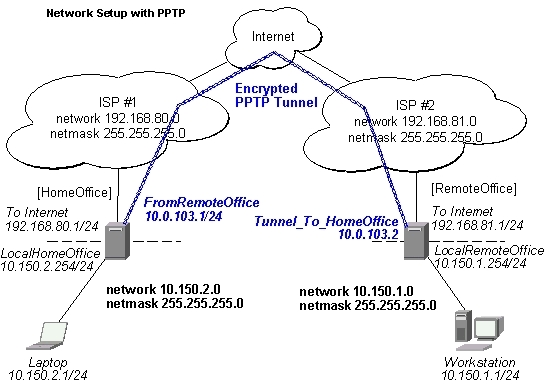
To route the local Intranets over the PPTP tunnel – add these routes:
[admin@HomeOffice] > ip route add dst-address 10.150.1.0/24 gateway 10.0.103.2
[admin@RemoteOffice] > ip route add dst-address 10.150.2.0/24 gateway 10.0.103.1
On the PPTP server it can alternatively be done using routes parameter of the user configuration:
[admin@HomeOffice] ppp secret> print detail
Flags: X - disabled
  0   name="ex" service=pptp caller-id="" password="lkjrht" profile=default
      local-address=10.0.103.1 remote-address=10.0.103.2 routes==""

[admin@HomeOffice] ppp secret> set 0 routes="10.150.1.0/24 10.0.103.2 1"
[admin@HomeOffice] ppp secret> print detail
Flags: X - disabled
  0   name="ex" service=pptp caller-id="" password="lkjrht" profile=default
      local-address=10.0.103.1 remote-address=10.0.103.2
      routes="10.150.1.0/24 10.0.103.2 1"

[admin@HomeOffice] ppp secret>
Test the PPTP tunnel connection:
[RemoteOffice]> /ping 10.0.103.1
10.0.103.1 pong: ttl=255 time=3 ms
10.0.103.1 pong: ttl=255 time=3 ms
10.0.103.1 pong: ttl=255 time=3 ms
ping interrupted
3 packets transmitted, 3 packets received, 0% packet loss
round-trip min/avg/max = 3/3.0/3 ms
Test the connection through the PPTP tunnel to the LocalHomeOffice interface:
[admin@RemoteOffice]> /ping 10.150.2.254
10.150.2.254 pong: ttl=255 time=3 ms
10.150.2.254 pong: ttl=255 time=3 ms
10.150.2.254 pong: ttl=255 time=3 ms
ping interrupted
3 packets transmitted, 3 packets received, 0% packet loss
round-trip min/avg/max = 3/3.0/3 ms
To bridge a LAN over this secure tunnel, please see the example in the 'EoIP' section of the manual. To set the maximum speed for traffic over this tunnel, please consult the 'Queues' section.
Please, consult the respective manual on how to set up a PPTP client with the software You are using.
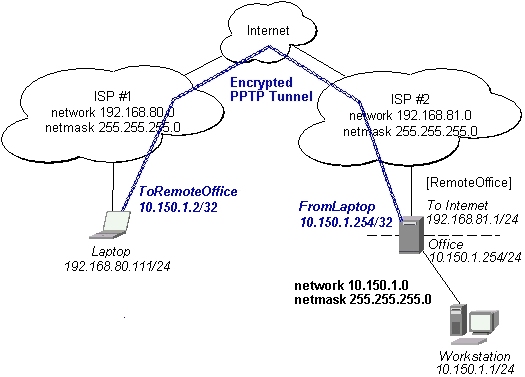
The router in this example:
On the PPTP server a user must be set up for the client:
[admin@RemoteOffice] ppp secret> add name=ex service=pptp password=lkjrht
local-address=10.150.1.254 remote-address=10.150.1.2
[admin@RemoteOffice] ppp secret> print detail
Flags: X - disabled
  0   name="ex" service=pptp caller-id="" password="lkjrht" profile=default
      local-address=10.150.1.254 remote-address=10.150.1.2 routes==""

[admin@RemoteOffice] ppp secret>
Then the user should be added in the PPTP server list:
[admin@RemoteOffice] interface pptp-server> add name=FromLaptop user=ex
[admin@RemoteOffice] interface pptp-server> print
Flags: X - disabled, D - dynamic, R - running
  #     NAME                 USER         MTU   CLIENT-ADDRESS  UPTIME   ENC...
  0     FromLaptop           ex
[admin@RemoteOffice] interface pptp-server>
And the server must be enabled:
[admin@RemoteOffice] interface pptp-server server> set enabled=yes
[admin@RemoteOffice] interface pptp-server server> print
            enabled: yes
                mtu: 1460
                mru: 1460
     authentication: mschap2
    default-profile: default
[admin@RemoteOffice] interface pptp-server server>
Finally, the proxy APR must be enabled on the 'Office' interface:
[admin@RemoteOffice] interface ethernet> set Office arp=proxy-arp
[admin@RemoteOffice] interface ethernet> print
Flags: X - disabled, R - running
  #    NAME                 MTU   MAC-ADDRESS       ARP
  0  R ToInternet           1500  00:30:4F:0B:7B:C1 enabled
  1  R Office               1500  00:30:4F:06:62:12 proxy-arp
[admin@RemoteOffice] interface ethernet>
PPTP Setup for Windows
Microsoft provides PPTP client support for Windows NT, 2000, ME, 98se, and 98.
Windows 98se, 2000, and ME include support in the Windows setup or automatically install PPTP.
For 95, NT, and 98, installation requires a download from Microsoft.
Many ISPs have made help pages to assist clients with Windows PPTP installation.
http://www.real-time.com/Customer_Support/PPTP_Config/pptp_config.html
http://www.microsoft.com/windows95/downloads/contents/WUAdminTools/S_WUNetworkingTools/W95WinsockUpgrade/Default.asp
If the VPN (PPTP) support is installed, select 'Dial-up Networking' and 'Create a new connection'. The option to create a 'VPN' should be selected. If there is no 'VPN' options, then follow the installation instructions below. When asked for the 'Host name or IP address of the VPN server', type the IP address of the router. Double-click on the 'new' icon and type the correct user name and password (must also be in the user database on the router or RADIUS server used for authentication).
The setup of the connections takes nine seconds after selection the 'connect' button. It is suggested that the connection properties be edited so that 'NetBEUI', 'IPX/SPX compatible', and 'Log on to network' are unselected. The setup time for the connection will then be two seconds after the 'connect' button is selected.
To install the 'Virtual Private Networking' support for Windows 98se,
go to the 'Setting' menu from the main 'Start' menu. Select 'Control Panel',
select 'Add/Remove Program', select the 'Windows setup' tab,
select the 'Communications' software for installation and 'Details'.
Go to the bottom of the list of software and select 'Virtual Private Networking' to be installed.
Troubleshooting
http://msdn.microsoft.com/library/backgrnd/html/understanding_pptp.htm
http://support.microsoft.com/support/kb/articles/q162/8/47.asp
http://www.ietf.org/rfc/rfc2637.txt?number=2637
http://www.ietf.org/rfc/rfc3078.txt?number=3078
http://www.ietf.org/rfc/rfc3079.txt?number=3079