The MikroTik router can act as an ISDN client for dialing out, or as an ISDN server for accepting incoming calls. The dial-out connections may be set as dial-on-demand or as permanent connections (simulating a leased line). The remote IP address (provided by the ISP) can be used as the default gateway for the router.
MikroTik Router OS supports following ISDN adapters (ISA ISDN adapters are not supported):
Topics covered in this manual:
ISDN Hardware and Software Installation
Please install the ISDN adapter into the PC accordingly the instructions provided by the adapter manufacturer.
The ppp-2.6.x.npk (less than 310KB) and the isdn-2.6.x.npk (less than 390KB) packages are required. The packages can be downloaded from MikroTik’s web page www.mikrotik.com. To install the packages, please upload them to the router with ftp and reboot. You may check to see if the packages are installed with the command:
[admin@MikroTik] system package> print
Flags: I - invalid
  #   NAME                  VERSION              BUILD-TIME           UNINSTALL
  0   ppp                   2.6rc4               sep/11/2002 14:43:31 no
  1   system                2.6rc4               sep/11/2002 14:43:03 no
  2   isdn                  2.6rc4               sep/11/2002 15:06:32 no
[admin@MikroTik] system package>
[admin@MikroTik] driver> add name="driver_name"
Argument description:
driver_name - name of the driver. The list of available drivers can be obtained by entering /driver add name= and pressing [Tab] twice
isdn-protocol - data channel protocol, the default is 'euro'
Complete list of all supported ISDN adapters and their driver names:
Check the loaded drivers by using the /driver print command. Example output looks like here:
[admin@MikroTik] driver> print
Flags: I - invalid, D - dynamic
  #   DRIVER                                IRQ IO       MEMORY   ISDN-PROTOCOL
  0 D RealTek 8139
  1   HFC 2BDS0 PCI                                               euro
[admin@MikroTik] driver>
ISDN channels are added to the system automatically when the ISDN card driver is loaded. Each channel corresponds to one physical 64K ISDN data channel.
The list of available ISDN channels can be viewed using the /isdn-channels print command. The channels are named channel1, channel2, and so on. E.g., if you have two ISDN channels, and one of them currently used by an ISDN interface, but the other available, the output should look like this:
[admin@MikroTik] isdn-channels> print
Flags: X - disabled, E - exclusive
  #    NAME                       CHANNEL    DIR.. TYPE  PHONE
  0    channel1                   0          in    data  137
  1    channel2                   1
[admin@MikroTik] isdn-channels>
ISDN channels are very similar to PPP serial ports. Any number of ISDN interfaces can be configured on a single channel, but only one interface can be enabled for that channel at a time. It means that every ISDN channel is either available or used by an ISDN interface.
In Euro-ISDN a subscriber can assign more than one ISDN number to an ISDN line. For example, an ISDN line could have the numbers 1234067 and 1234068. Each of these numbers can be used to dial the ISDN line. These numbers are referred to as Multiple Subscriber Numbers (MSN).
A similar, but separate concept is EAZ numbering, which is used in German ISDN networking. EAZ number can be used in addition to dialed phone number to specify the required service.
For dial-out ISDN interfaces, MSN/EAZ number specifies the outgoing phone number (the calling end). For dial-in ISDN interfaces, MSN/EAZ number specifies the phone number that will be answered. If you are unsure about your MSN/EAZ numbers, leave them blank (it is the default).
For example, if your ISDN line has numbers 1234067 and 1234068, you could configure your dial-in server to answer only calls to 1234068, by specifying "1234068" as your MSN number. In a sense, MSN is just your phone number.
ISDN Client Interface Configuration
The ISDN client is used to connect to remote dial-in server (probably ISP) via ISDN. To set up an ISDN dial-out connection, use the ISDN dial-out configuration menu under the /interface isdn-client submenu.
ISDN client interfaces can be added using the add command:
[admin@MikroTik] interface isdn-client> add msn="142" user="test" \
\... password="test" phone="144" bundle-128K=no
[admin@MikroTik] interface isdn-client> print
Flags: X - disabled, R - running
  0 X  name="isdn-out1" mtu=1500 mru=1500 msn="142" user="test"
       password="test" profile=default phone="144" l2-protocol=hdlc
       bundle-128K=no dial-on-demand=no add-default-route=no use-peer-dns=no

[admin@MikroTik] interface isdn-client>
Argument description:
name - interface name
mtu - maximum Transmit Unit
mru - maximum Receive Unit
phone - phone number to dial
msn - MSN/EAZ of ISDN line provided by the line operator
dial-on-demand - use dialing on demand
l2-protocol - level 2 protocol to be used
user - user name that will be provided to the remote server
password - password that will be provided to the remote server
add-default-route - add default route to remote host on connect
profile - profile to use when connecting to the remote server
bundle-128K - use both channels instead of just one
ISDN Server Interface Configuration
ISDN server is used to accept remote dial-in connections from ISDN clients via ISDN. To set up an ISDN dial-in connection, use the ISDN dial-in configuration menu under /interface isdn-server submenu.
ISDN server interfaces can be added using the add command:
[admin@MikroTik] interface isdn-server> add msn="142" bundle-128K=no
[admin@MikroTik] interface isdn-server> print
Flags: X - disabled, R - running
  0 X  name="isdn-in1" mtu=1500 mru=1500 msn="142"
       authentication=mschap2,chap,pap profile=default l2-protocol=x75bui
       bundle-128K=no

[admin@MikroTik] interface isdn-server>
Argument description:
name - Interface name
mtu - Maximum Transmit Unit
mru Maximum Receive Unit
msn - MSN/EAZ of ISDN line provided by the line operator
l2-protocol - Level 2 protocol to be used
authentication - Use authentication (mschap2, chap, pap)
profile - profile to use when connecting to the server
bundle-128K - Use Both channels instead of just one.
Example of a printout of configured ISDN server interface is here:
The following examples of ISDN applications are discussed below:
Dial-out ISDN connections allow a local router to connect to a remote dial-in server (ISP's) via ISDN.
Let's assume you would like to set up a router that connects your local LAN with your ISP via ISDN line. First you should load the corresponding ISDN card driver. Supposing you have an ISDN card with an HFC chip:
[admin@MikroTik]> /driver add name=hfc
Now additional channels should appear. Assuming you have only one ISDN card driver loaded, you should get following:
[admin@MikroTik] isdn-channels> print
Flags: X - disabled, E - exclusive
  #    NAME                       CHANNEL    DIR.. TYPE  PHONE
  0    channel1                   0
  1    channel2                   1
[admin@MikroTik] isdn-channels>
Suppose you would like to use dial-on-demand to dial your ISP and automatically add a default route to it. Also, you would like to disconnect when there is more than 30s of network inactivity. Your ISP's phone number is 12345678 and the user name for authentication is 'john'. Your ISP assigns IP addresses automatically. Add an outgoing ISDN interface and configure it in the following way:
[admin@mikrotik]> /interface isdn-client add name="isdn-isp" phone="12345678"
user="john" password="31337!)" add-default-route=yes dial-on-demand=yes
[admin@MikroTik] > /interface isdn-client print
Flags: X - disabled, R - running
  0 X  name="isdn-isp" mtu=1500 mru=1500 msn="" user="john" password="31337!)"
       profile=default phone="12345678" l2-protocol=hdlc bundle-128K=no
       dial-on-demand=yes add-default-route=yes use-peer-dns=no
Configure PPP profile.
[admin@MikroTik] ppp profile> print
Flags: * - default
  0 * name="default" local-address=0.0.0.0 remote-address=0.0.0.0
      session-timeout=0s idle-timeout=0s use-compression=no
      use-vj-compression=yes use-encryption=no require-encyrption=no only-one=no
      tx-bit-rate=0 rx-bit-rate=0 incoming-filter="" outgoing-filter=""
[admin@Mikrotik] ppp profile> set default idle-timeout=30s
(If you would like to remain connected all the time, i.e., as a leased line, then set the idle-timeout to 0s.)
All that remains is to enable the interface:
[admin@MikroTik] /interface set isdn-isp disabled=no
You can monitor the connection status with
[admin@MikroTik] /interface isdn-client monitor isdn-isp
Dial-in ISDN connections allow remote clients to connect to your router via ISDN.
Let us assume you would like to set up a router for accepting incoming ISDN calls from remote clients. You have an ethernet card connected to the LAN, and an ISDN card connected to the ISDN line. First you should load the corresponding ISDN card driver. Supposing you have an ISDN card with an HFC chip:
[admin@MikroTik] /driver add name=hfc
Now additional channels should appear. Assuming you have only one ISDN card driver loaded, you should get the following:
[admin@MikroTik] isdn-channels> print
Flags: X - disabled, E - exclusive
  #    NAME                       CHANNEL    DIR.. TYPE  PHONE
  0    channel1                   0
  1    channel2                   1
[admin@MikroTik] isdn-channels>
Add an incoming ISDN interface and configure it in the following way:
[admin@MikroTik] interface isdn-server> add msn="7542159" \
authentication=chap,pap bundle-128K=no
[admin@MikroTik] interface isdn-server> print
Flags: X - disabled
  0 X  name="isdn-in1" mtu=1500 mru=1500 msn="7542159" authentication=chap,pap
       profile=default l2-protocol=x75bui bundle-128K=no
Configure PPP settings and adding a user to routers database.
[admin@MikroTik] ppp profile> print
Flags: * - default
  0 * name="default" local-address=0.0.0.0 remote-address=0.0.0.0
      session-timeout=0s idle-timeout=0s use-compression=no
      use-vj-compression=yes use-encryption=no require-encyrption=no only-one=no
      tx-bit-rate=0 rx-bit-rate=0 incoming-filter="" outgoing-filter=""
[admin@Mikrotik] ppp profile> set default idle-timeout=5s local-address=10.99.8.1 \
\... remote-address=10.9.88.1
Add user 'john' to the router user database. Assuming that the password is '31337!)':
[admin@MikroTik] ppp secret> add name=john password="31337!)" service=isdn
[admin@MikroTik] ppp secret> print
[admin@ISDN] ppp secret> print
Flags: X - disabled
  #   NAME              SERVICE CALLER-ID        PASSWORD         PROFILE
  0   john              isdn                     31337!)          default
[admin@MikroTik] ppp secret>
Check the status of the ISDN server interface and wait for the call:
[admin@MikroTik] interface isdn-server> monitor isdn-in1

    status: Waiting for call...
Backup systems are used in specific cases, when you need to maintain a connection, even if something fails. For example, if someone cuts the wires, the router can automatically connect to a different interface to continue its work. This backup is based on a utility that monitors the status of the connection - netwatch, and a script, which runs the netwatch.
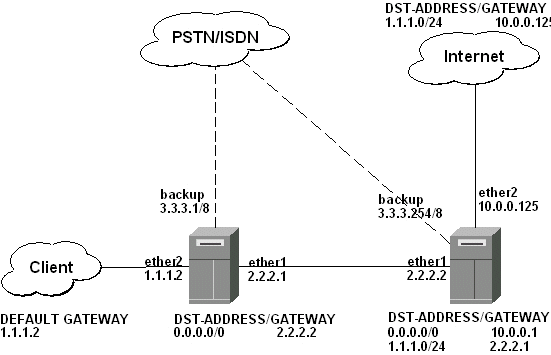
This is an example of how to make a router backup system. In this example we use a ISDN connection to backup a standard ethernet connection. You can, of course, use anything instead of the ISDN connecion - PPP, for example. When the ethernet fails (the router nr.1 cannot ping the router nr.2 to 2.2.2.2 (see picture) the router establishes a ISDN connection - a so-called backup link - to continue comunicating with the nr.2 .
Note, that in our case there are just two routers, but this system can be also used to connect two or more different networks.
The backup system example is described in the following diagram:
In this case the ‘backup’ interface is a ISDN connection, but it can be anything. Follow the instructions below on how to set up the backup link:
To use ISDN, the ISDN card driver must be loaded:
[admin@MikroTik] driver> add name=hfc
The PPP connection must have the following configuration: A new user must be added to the routers one and two:
[admin@Mikrotik] ppp secret> add name=backup password=backup service=isdn
A ISDN server and PPP profile must be set up on the second router:
[admin@MikroTik] ppp profile> set default local-address=3.3.3.254 remote-address=3.3.3.1
[admin@MikroTik] interface isdn-server> add name=backup msn=7801032
A ISDN client must be added to the first router:
[admin@MikroTik] interface isdn-client>
add name=backup user="backup" password="backup" phone=7801032 msn=7542159
Use the /ip route add command to add the required static routes and comments to them. Comments are required for references in scrips.
The First router:
[admin@Mikrotik] ip route> add gateway 2.2.2.2 comment "route1"
The Second router:
[admin@Mikrotik] ip route> add gateway 2.2.2.1 comment "route1"
Add scripts in the submenu \system script using the following commands:
The First Router:
[admin@Mikrotik] system script> add name=connection_down \
\... source={/interface enable backup; /ip route set route1 gateway 3.3.3.254}
[admin@Mikrotik] system script> add name=connection_up \
\... source={/interface disable backup; /ip route set route1 gateway 2.2.2.2}
The Second Router:
[admin@Mikrotik] system script> add name=connection_down \
\... source={/ip route set route1 gateway 3.3.3.1}
[admin@Mikrotik] system script> add name=connection_up \
\... source={/ip route set route1 gateway 2.2.2.1}
To use netwatch, you need the advanced tools feature package installed. Please upload it to the router and reboot. When installed, the advanced-tools package should be listed under the /system package print list.
Add the following settings to the first router:
[admin@Mikrotik] tool netwatch> add host=2.2.2.1 interval=5s \
\... up-script=connection_up down-script=connection_down
Add the following settings to the second router:
[admin@Mikrotik] tool netwatch> add host=2.2.2.2 interval=5s \
\... up-script=connection_up down-script=connection_down