Network setups with EoIP interfaces:
Specific Properties:
EoIP Setup
IP EoIP Interface management can be accessed under
the /interface eoip submenu.
You can add an EoIP tunnel interface using the /interface eoip add command:
[admin@MikroTik] interface eoip> add
creates new item with specified property values.
             arp  Address Resolution Protocol
       copy-from  item number
        disabled
             mtu  Maximum Trasfer Unit
            name  New tunnel name
  remote-address  Remote address of tunnel
       tunnel-id
[admin@MikroTik] interface eoip> add name to_mt2 tunnel-id 1 remote-address 10.5.8.1
[admin@MikroTik] interface eoip> print
Flags: X - disabled, R - running
  0 X  name="to_mt2" mtu=1500 arp=enabled remote-address=10.5.8.1 tunnel-id=1

[admin@MikroTik] interface eoip> enable 0
[admin@MikroTik] interface eoip> print
Flags: X - disabled, R - running
  0 R  name="to_mt2" mtu=1500 arp=enabled remote-address=10.5.8.1 tunnel-id=1

[admin@MikroTik] interface eoip> enable 0
Descriptions of settings:
name - Interface name for reference
mtu - Maximum Transmit Unit. Should be the default 1500 bytes.
arp - Address Resolution Protocol, one of the:tunnel-id - Should be a number, that is not being used for an another EoIP tunnel.
- disabled - the interface will not use ARP protocol
- enabled - the interface will use ARP protocol
- proxy-arp - the interface will be an ARP proxy (see corresponding manual)
- reply-only - the interface will only reply to the requests originated to its own IP addresses, but neighbour MAC addresses will be gathered from /ip arp statically set table only.
remote-address - The IP address of the other side of the EoIP tunnel – must be a MikroTik router.
You can assign an IP address to the EoIP interface.
The router at the other end should have the same tunnel-id value, and should have the remote-address set to [MikroTik].
There is no authentication or 'state' for this interface.
The bandwidth usage of the interface may be monitored with the 'monitor'
feature from the '/interface' menu.
EoIP Application Example
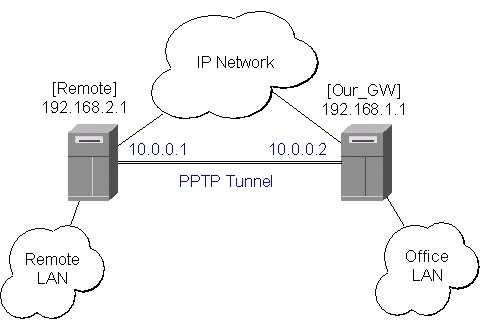
Let us assume we want to bridge two networks: 'Office LAN' and 'Remote LAN'.
The networks are connected to an IP network through the routers [Our_GW] and [Remote].
The IP network can be a private intranet or the Internet.
Both routers can communicate with each other through the IP network.
Our goal is to create a secure channel between the routers and bridge both networks through it. The network setup diagram is as follows:
To make a secure Ethernet bridge between two routers you should:
[admin@Our_GW] interface pptp-server> /ppp secret add name=joe service=pptp \
\... password=top_s3 local-address=10.0.0.1 remote-address=10.0.0.2
[admin@Our_GW] interface pptp-server> add name=from_remote user=joe
[admin@Our_GW] interface pptp-server> server set enable=yes
[admin@Our_GW] interface pptp-server> print
Flags: X - disabled, D - dynamic, R - running
  #     NAME                 USER         MTU   CLIENT-ADDRESS  UPTIME   ENC...
  0     from_remote          joe
[admin@Our_GW] interface pptp-server>
The Remote router will be the pptp client:
[admin@Remote] interface pptp-client> add name=pptp user=joe \
\... connect-to=192.168.1.1 password=top_s3 mtu=1500 mru=1500
[admin@Remote] interface pptp-client> enable pptp
[admin@Remote] interface pptp-client> print
Flags: X - disabled, R - running
  0  R name="pptp" mtu=1500 mru=1500 connect-to=192.168.1.1 user="joe"
       password="top_s2" profile=default add-default-route=no


[admin@Remote] interface pptp-client> monitor pptp
      status: "connected"
      uptime: 39m46s
    encoding: "none"

[admin@Remote] interface pptp-client>
See the PPTP Interface Manual for more details on setting up encrypted channels.
[admin@Our_GW] interface eoip> add name="eoip-remote" tunnel-id=0 \
\... remote-address=10.0.0.2
[admin@Our_GW] interface eoip> enable eoip-remote
[admin@Our_GW] interface eoip> print
Flags: X - disabled, R - running
  0    name=eoip-remote mtu=1500 arp=enabled remote-address=10.0.0.2 tunnel-id=0
[admin@Our_GW] interface eoip>

[admin@Remote] interface eoip> add name="eoip" tunnel-id=0 remote-address=10.0.0.1
[admin@Remote] interface eoip> enable eoip-main
[admin@Remote] interface eoip> print
Flags: X - disabled, R - running
  0   name=eoip mtu=1500 arp=enabled remote-address=10.0.0.1 tunnel-id=0

[Remote] interface eoip>
On the Our_GW:
[admin@Our_GW] interface bridge> add forward-protocols=ip,arp,other
[admin@Our_GW] interface bridge> print
Flags: X - disabled, R - running
  0 X  name="bridge1" mtu=1500 arp=enabled mac-address=00:00:00:00:00:00
       forward-protocols=ip,arp,other priority=1

[admin@Our_GW] interface bridge> port print
Flags: X - disabled
  #   INTERFACE                            BRIDGE
  0   eoip-remote                          none
  1   office-eth                           none
  2   isp                                  none

[admin@Our_GW] interface bridge> port set "0,1" bridge=bridge1
And the seme for the Remote:
[admin@Remote] interface bridge> add forward-protocols=ip,arp,other
[admin@Remote] interface bridge> print
Flags: X - disabled, R - running
  0 X  name="bridge1" mtu=1500 arp=enabled mac-address=00:00:00:00:00:00
       forward-protocols=ip,arp,other priority=1

[admin@Remote] interface bridge> port print
Flags: X - disabled
  #   INTERFACE                            BRIDGE
  0   ether                                none
  1   adsl                                 none
  2   eoip-main                            none

[admin@Remote] interface bridge> port set "0,2" bridge=bridge1