For more information about adapter hardware please see the relevant
User’s Guides and Technical Reference Manuals of the hardware manufacturers.
Contents of the Manual
The following topics are covered in this manual:- Supported Network Roles
- Installation
- License
- System Resource Usage
- Installing the Wireless Adapter
- Loading the Driver for the Wireless Adapter
- Wireless Interface Configuration
- Station Mode Configuration
- Access Point Mode Configuration
- Troubleshooting
- Wireless Network Applications
- Supported Hardware
Supported Network Roles
Wireless Client
The Atheros interface can be configured to act as an IEEE 802.11a wireless client (station) to associate with an access point.Wireless Access Point
The Atheros interface can be configured to act as an IEEE 802.11a wireless access point. The access point can register wireless clients.Wireless Bridge
This is limited version of the Access Point mode that allows only one client to be registered but does not require the AP feature license, only the 2.4GHz Wireless license. Thus, it is possible to create point-to-point links and bridge networks over wireless links.Installation
The MikroTik Router should have the atheros software package installed. The software package file atheros-2.6.x.npk can be downloaded from MikroTik’s web page www.mikrotik.com. To install the package, please upload the correct version file to the router and reboot. Use BINARY mode ftp transfer. After successful installation the package should be listed under the installed software packages list.License
The Atheros chipset based adapters, like 2.4GHz wireless adapters, require the 2.4GHz wireless feature license. One license is for one installation of the MikroTik RouterOS, disregarding how many cards are installed in one PC box. The wireless feature is not included in the Free Demo or Basic Software License. The 2.4GHz Wireless Feature cannot be obtained for the Free Demo License. It can be obtained only together with the Basic Software License.
Note! The 2.4GHz Wireless Feature License enables only the
station and the bridge modes of the Atheros card.
To enable the access point mode, additionally the Wireless AP Feature
License is required.
The MikroTik RouterOS supports as many Atheros chipset based cards as many free adapter slots has your system. One license is valid for all cards on your system.
System Resource Usage
Atheros chipsets are used in PCI/miniPCI/CardBus cards and thus support IRQ sharing.Installing the Wireless Adapter
The basic installation steps of the wireless adapter should be as follows:- Check the system BIOS settings and make sure you have the PnP OS Installed set to Yes.
- The Atheros adapter should appear as Network Adapter in the list of by BIOS found devices during the system startup.
Loading the Driver for the Wireless Adapter
PCI, miniPCI, PC (PCMCIA) and CardBus cards do not require a 'manual' driver loading, since they are recognized automatically by the system and the driver is loaded at the system startup.
Wireless Interface Configuration
If the driver has been loaded successfully, and you have the required Wireless Software License (same license is valid for 2.4GHz and 5GHz devices), then the Atheros Wireless interface should appear under the /interface list with the name atherosX, where X is 1,2,... You can change the interface name to a more descriptive one using the set command. To enable the interface, use the enable command:
[admin@MikroTik] > interface print
Flags: X - disabled, D - dynamic, R - running
  #    NAME                 TYPE             MTU
  0  R ether1               ether            1500
  1 X  atheros1             atheros          1500
[admin@MikroTik] > interface enable 1
[admin@MikroTik] > interface print
Flags: X - disabled, D - dynamic, R - running
  #    NAME                 TYPE             MTU
  0  R ether1               ether            1500
  1  R atheros1             atheros          1500
[admin@MikroTik] >
More configuration and statistics parameters can be found under the /interface atheros menu:
[admin@MikroTik] interface atheros> print
Flags: X - disabled, R - running
  0  R name="atheros1" mtu=1500 mac-address=00:06:AB:00:37:8B
       arp=enabled mode=station root-ap=00:00:00:00:00:00
       frequency=5240MHz ssid="mikrotik"
       supported-rates=6Mbps,9Mbps,12Mbps,18Mbps,24Mbps,36Mbps,48Mbps,54Mbps
       basic-rates=6Mbps protocol=802.11-standard ack-time=100
       default-authentication=yes default-forwarding=yes
       max-clients=2007
[admin@MikroTik] interface atheros>
Argument description:
name - interface name (same as for other interfaces)
mtu - maximum transfer unit (same as for other interfaces)
mac-address - MAC address of card. In AP mode this will also be BSSID of BSS
arp - Address Resolution Protocol, one of the:mode - mode of the interface:
- disabled - the interface will not use ARP protocol
- enabled - the interface will use ARP protocol
- proxy-arp - the interface will be an ARP proxy (see corresponding manual)
- reply-only - the interface will only reply to the requests originated to its own IP addresses, but neighbour MAC addresses will be gathered from /ip arp statically set table only.
root-ap - (only ap-bridge or bridge) MAC address of the root access point to register to
- if station, card works as station (client) for the wireless infrastructure
- bridge, card works as access point, but can register only one client or access point
- if ap-bridge, card works as access point, i.e., it creates wireless infrastructure
frequency - (only ap-bridge or bridge) frequency that AP will use to create BSS (5180, 5200, 5220, 5240, 5260, 5280, 5300, 5320)
ssid - Service Set Identifier. In station mode - ssid to connect to, in AP - ssid to use when creating BSS (this can not be left blank)
default-authentication - (only ap-bridge or bridge) what to do with a client that wants to associate, but it is not in the access-list
default-forwarding - (only ap-bridge or bridge) what to do with a client that wants to send packets to other wireless clients, but it is not in the access-list
max-clients - (only ap-bridge or bridge) maximum number of clients (including other access points), that is allowed to associate with this access point (1...2007)
supported-rates - Rates at which this node will work (6Mbps,9Mbps,12Mbps,18Mbps,24Mbps,36Mbps,48Mbps,54Mbps)
basic-rates - (only ap-bridge or bridge) Rates that every client that plans to connect to this AP should be able to work at
protocol - One of the:ack-time - time in microseconds to wait for ack packet for unicast transmissions, should be increased for long distance links (in standard mode 26 is fine). Maximum for 802.11a standard mode is 204 microseconds, maximum for the PTP Turbo and Turbo mode is 102 microseconds. For example, a 4km link works fine with ack-time=70
- 802.11-standard - timing settings as suggested by 802.11a standard
- turbo-mode - atheros turbo mode uses double the amount of radio frequency allowing faster speeds
- ptp-turbo-mode - atheros turbo mode with speed optimised timing settings to be used in ptp links
Station Mode Configuration
To set the wireless interface working with an IEEE 802.11a access point (register to the AP), you should set the following parameters:- The Service Set Identifier. It should match the SSID of the AP.
- The Operation Mode of the card should be set to station.
[admin@MikroTik] interface atheros> set atheros1 ssid=testing
[admin@MikroTik] interface atheros> enable atheros1
[admin@MikroTik] interface atheros> pr
Flags: X - disabled, R - running
  0    name="atheros1" mtu=1500 mac-address=00:06:AB:00:37:8B
       arp=enabled mode=station root-ap=00:00:00:00:00:00
       frequency=5240MHz ssid="testing"
       supported-rates=6Mbps,9Mbps,12Mbps,18Mbps,24Mbps,36Mbps,48Mbps,54Mbps
       basic-rates=6Mbps protocol=802.11-standard ack-time=100
       default-authentication=yes default-forwarding=yes
       max-clients=2007
[admin@MikroTik] interface atheros>
New in V2.6.9:
You can limit the maximum data rate of a client depending on the RF link quality to, say, 36Mbps by specifying the client to work up to that rate. For that, set, for example, 'supported-rates=6Mbps,24Mbps,36Mbps'. Do not forget to include all 'basic-rates' of your access point (default is 6Mbps)!
Monitoring the Interface Status
In station mode, the atheros interface status can be monitored using the /interface atheros monitor command:
[admin@MikroTik] interface atheros> monitor atheros1
             status: connected-to-ess
          frequency: 5240MHz
            tx-rate: 36Mbps
            rx-rate: 9Mbps
               ssid: "testing"
              bssid: 00:06:AB:00:37:88
    signal-strength: 24
[admin@MikroTik] interface atheros>
Argument description:
status - status of the interface
frequency - the frequency that is used for the connection
- searching-for-network - the card has not registered to an AP and is searching for one to register to
- authenticating - the card is trying to authenticate on an AP
- associating - the card is trying to associate with an AP
- connected-to-ess - the card has registered to an AP
tx-rate - the actual transmitting data rate of the connection
rx-rate - the actual receiving data rate of the connection
ssid - the Service Set Identifier
bssid - the Basic Service Set Identifier (actually, the MAC address of the access point)
signal-strength - the signal strength
The monitor command does not work, if the interface is disabled, or the mode is ap-bridge or bridge.
Access Point Mode Configuration
To set the wireless interface working as an IEEE 802.11a access point (to register clients), you should set the following parameters:- The Service Set Identifier. It should be unique for your system.
- The Operation Mode of the card should be set to ap-bridge or bridge
- The Frequency of the card.
All other parameters can be left as default. However, you should make sure, that all clients support the basic rate of your access point, i.e., the supported-rates of the client should cover the basic-rates of the access point.
To configure the wireless interface for working as an access point with ssid "testing" and use the frequency 5240MHz, it is enough to enter the command:
[admin@MikroTik] interface atheros>
set atheros1 mode=ap-bridge frequency=5240MHz ssid=testing
[admin@MikroTik_AP] interface atheros> print
Flags: X - disabled, R - running
  0  R name="atheros1" mtu=1500 mac-address=00:06:AB:00:37:88 arp=enabled
       mode=ap-bridge root-ap=00:00:00:00:00:00 frequency=5240MHz ssid="testing"
       supported-rates=6Mbps,9Mbps,12Mbps,18Mbps,24Mbps,36Mbps,48Mbps,54Mbps
       basic-rates=6Mbps protocol=802.11-standard ack-time=100
       default-authentication=yes default-forwarding=yes max-clients=2007
[admin@MikroTik_AP] interface atheros>
Use the registration table to see the associated clients.
Registration Table
The registration table shows all clients currently associated with the access point, for example:
[admin@MikroTik_AP] interface atheros> registration-table print
  # INTERFACE   MAC-ADDRESS       TYPE      PARENT            SIGNAL     TX-...
  0 atheros1    00:40:63:C0:84:E7 local
  1 atheros1    00:06:AB:00:37:8B radio                       26         54Mbps
  2 atheros1    00:50:08:00:01:33 local
  3 atheros1    00:01:24:70:03:58 radio                       47         6Mbps
[admin@MikroTik_AP] interface atheros>
Argument description for the registration-table entry:
interface - interface that client is registered to
mac-address - mac address of the registered client
type - type of the client:
parent - parent access point's MAC address, if forwarded from another access point
- radio - client registered to the interface
- local - client learned from bridged interface
- ap - client is an access point
- forward - client is forwarded from another access point
- parent-ap - the access point this interface is connected to
signal - current signal strength
tx-rate - the actual transmitting data rate of the connection
The print stats command give additional per-client statistics:
[admin@MikroTik_AP] interface atheros> registration-table print stats
  0 interface=atheros1 mac-address=00:40:63:C0:84:E7 type=local

  1 interface=atheros1 mac-address=00:06:AB:00:37:8B type=radio
    tx-rate=54Mbps rx-rate=54Mbps packets=182,192 bytes=17840,18642
    uptime=00:08:23.440 signal=26

  2 interface=atheros1 mac-address=00:50:08:00:01:33 type=local

  3 interface=atheros1 mac-address=00:01:24:70:03:58 type=radio tx-rate=6Mbps
    rx-rate=48Mbps packets=18,49 bytes=1764,4159 uptime=00:01:35.770
    signal=46

[admin@MikroTik_AP] interface atheros>
Additional argument description (only for wireless clients):
packets - number of received and sent packets
bytes - number of received and sent bytes
signal - signal strength
rx-rate - receive data rate
tx-rate - transmit data rate
uptime - time the client is associated with the access point
Access List
The access list is used to restrict authentications (associations) of clients. This list contains MAC address of client and associated action to take when client attempts to connect. Also, the forwarding of frames sent by the client is controlled.The association procedure is the following: when a new client wants to associate to the AP that is configured on interface atherosX, entry with client's MAC address and interface atherosX is looked up in the access-list. If such entry is found, action specified in it is taken. Otherwise default-authentication and default-forwarding of interface atherosX is taken.
To add an access list entry, use the add command, for example:
[admin@MikroTik] interface atheros access-list>
add mac-address=00:06:AB:00:37:72 interface=atheros1
[admin@MikroTik] interface atheros access-list> print
Flags: X - disabled
  0   mac-address=00:06:AB:00:37:72 interface=atheros1 authentication=yes
      forwarding=yes

[admin@MikroTik] interface atheros access-list>
Argument description:
mac-address - MAC address of the client
interface - AP interface
authentication - accept this client when it tries to connect or not
forwarding - forward the client's frames to other wireless clients or not
If you have default authentication action for the interface set to yes, you can disallow this node to register at the AP's interface atheros by setting authentication=no for it. Thus, all nodes except this one will be able to register to the interface atheros1.
If you have default authentication action for the interface set to no, you can allow this node to register at the AP's interface atheros1 by setting authentication=yes for it. Thus, only the specified nodes will be able to register to the interface atheros1.
Registering the Access Point to another Access Point
You can configure the access point to registering to another (root) access point by specifying the MAC address of the root access point:
[admin@MikroTik] interface atheros> set atheros1 root-ap=00:06:AB:00:37:75
[admin@MikroTik] interface atheros> print
Flags: X - disabled, R - running
  0  R name="atheros1" mtu=1500 mac-address=00:06:AB:00:37:8F arp=enabled
       mode=ap-bridge root-ap=00:06:AB:00:37:75 frequency=5180MHz ssid="testing"
       supported-rates=6-54 basic-rates=6 protocol=802.11-standard ack-time=26
       default-authentication=yes default-forwarding=yes max-clients=2007


[admin@MikroTik] interface atheros>
The 'non-root' access point will register the clients only if it is registered to the 'root' access point.
Having one access point registered to another one enables bridging the networks, if bridging mode between atheros and ethernet interfaces is used. Note, that in the station mode, bridging cannot be used between atheros and ethernet interfaces.
Troubleshooting
- The atheros interface does not show up under the interfaces list
Obtain the required license for 2.4GHz wireless feature. - The access-list has entries restricting the registration, but the node
is still registered.
Set some parameter of the atheros interface to get all nodes re-register. - The wireless card does not register to the AP
Check the cabling and antenna alignment. Check, if you have correct settings for 'supported-rates' and 'basic-rates'. The default 'supported-rates=6Mbps,9Mbps,12Mbps,18Mbps,24Mbps,36Mbps,48Mbps,54Mbps' and 'basic-rates=6Mbps' should work for all nodes on your system. - There is occasional packet loss when I ping the wireless client.
Packet loss is due to attempts to change the transmit data rate to a higher one. For lower quality RF links limit the maximum data rate of a client by specifying the 'supported-rate' argument, for example, set 'supported-rate=6Mbps,12Mbps,36Mbps'.
Wireless Network Applications
Theree possible wireless network configurations are discussed in the following examples:
- Wireless Client
- Wireless Access Point
- Wireless Bridge
Wireless Client
Let us consider the following point-to-multipoint network setup with MikroTik with Atheros Wireless Interface in AP-bridge mode as a wireless bridge and MikroTik Wireless Router as a client:

The wireless bridge is connected to the wired network's HUB and has IP address from the network 10.0.0.0/24. See below for the wireless bridge configuration.
The minimum configuration for the MikroTik router's atheros wireless interface is:
- Setting the Service Set Identifier to that of the AP, i.e., "mt"
- The Operation Mode should be station.
[admin@MikroTik] interface atheros> set 0 ssid=mt
[admin@MikroTik] interface atheros> monitor 0
             status: connected-to-ess
          frequency: 5180MHz
            tx-rate: 54Mbps
            rx-rate: 6Mbps
               ssid: "mt"
              bssid: 00:06:AB:00:37:8E
    signal-strength: 72

[admin@MikroTik] interface atheros>
The IP addresses assigned to the wireless interface should be from the network 10.0.0.0/24, e.g.:
[admin@MikroTik] ip address> add address=10.0.0.217/24 interface=atheros1
[admin@MikroTik] ip address> print
Flags: X - disabled, I - invalid, D - dynamic
  #   ADDRESS            NETWORK         BROADCAST       INTERFACE
  0   10.0.0.217/24      10.0.0.0        10.0.0.255      atheros1
  1   192.168.0.254/24   192.168.0.254   192.168.0.254   ether1
[MikroTik] ip address>
The default route should be set to the gateway router 10.0.0.1 (not to the AP 10.0.0.250 !):
[admin@MikroTik] ip route> add gateway=10.0.0.1
[admin@MikroTik] ip route> print
Flags: X - disabled, I - invalid, D - dynamic, J - rejected,
C - connect, S - static, R - rip, O - ospf, B - bgp
    #    DST-ADDRESS        G GATEWAY         DISTANCE INTERFACE
    0  S 0.0.0.0/0          r 10.0.0.1        1        atheros1
    1 DC 10.0.0.0/24        r 0.0.0.0         0        atheros1
    2 DC 192.168.0.0/24     r 0.0.0.0         0        ether1
[admin@MikroTik] ip route>
Note that you cannot use the bridging function between the atheros and ethernet interfaces, if the atheros interface is in the station mode. The bridge does not work in this case!
Wireless Access Point
Let us consider the following point-to-point wireless network setup with two MikroTik Wireless Routers:
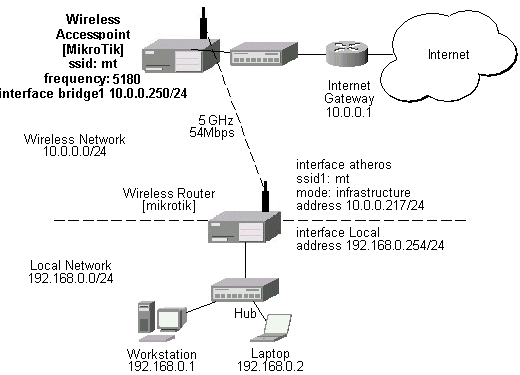
To make the MikroTik router work as an access point, the configuration of the atheros wireless interface should be as follows:
- A unique Service Set Identifier should be chosen, say "mt"
- A frequency should be selected for the link, say 5180MHz
- The operation mode should be set to ap-bridge
[admin@MikroTik] interface atheros> set 0 mode=ap-bridge frequency=5180MHz ssid=mt
[admin@MikroTik] interface atheros> print
  0  R name="atheros1" mtu=1500 mac-address=00:06:AB:00:37:8E arp=enabled
       mode=ap-bridge root-ap=00:06:AB:00:37:75 frequency=5180MHz ssid="mt"
       supported-rates=6-54 basic-rates=6 protocol=802.11-standard ack-time=26
       default-authentication=yes default-forwarding=yes max-clients=2007


[admin@MikroTik] interface atheros>
The list of registered clients looks like follows:
[admin@MikroTik] interface atheros> registration-table print
  # INTERFACE   MAC-ADDRESS       TYPE      PARENT            SIGNAL     TX-...
  0 atheros1    00:06:AB:00:37:85 client                      67         6Mbps
[admin@MikroTik] interface atheros>
There are two possible ways of implementing the wireless access point feature:
- Use it as a pure access point with bridging function enabled between the ethernet and atheros interfaces. The IP address can be assigned to the bridge interface.
- Use it as a wireless access point router with routing functionality between the Ethernet and atheros interfaces. It requires different IP addresses assigned to both the Ethernet and atheros interfaces. The addresses should be from different networks as well!
- Add bridge interface with the desired forwarded protocols:
[admin@MikroTik] interface bridge> add forward-protocols=ip,arp,other [admin@MikroTik] interface bridge> print Flags: X - disabled, R - running 0 X name="bridge1" mtu=1500 arp=enabled mac-address=00:00:00:00:00:00 forward-protocols=ip,arp,other priority=1 [admin@MikroTik] interface bridge> - Add the desired interfaces to the bridge interface:
[admin@MikroTik] interface bridge port> set "ether1,atheros1" bridge=bridge1
[admin@MikroTik] interface bridge port> print
Flags: X - disabled
  #   INTERFACE                            BRIDGE
  0   ether1                               bridge1
  1   atheros1                             bridge1
[admin@MikroTik] interface bridge port>
- Enable the bridge interface:
[admin@MikroTik] interface> print
Flags: X - disabled, D - dynamic, R - running
  #    NAME                 TYPE             MTU
  0  R ether1               ether            1500
  1  R atheros1             atheros          1500
  2 X  bridge1              bridge           1500
[admin@MikroTik] interface> enable bridge1
[admin@MikroTik] interface> print
Flags: X - disabled, D - dynamic, R - running
  #    NAME                 TYPE             MTU
  0  R ether1               ether            1500
  1  R atheros1             atheros          1500
  2  R bridge1              bridge           1500
[admin@MikroTik] interface>
- Assign an IP address to the bridge interface and specify the default gateway for the access point:
[admin@MikroTik] ip address> add address=10.0.0.250/24 interface=bridge1
[admin@MikroTik] ip address> print
Flags: X - disabled, I - invalid, D - dynamic
  #   ADDRESS            NETWORK         BROADCAST       INTERFACE
  0   10.0.0.250/24      10.0.0.0        10.0.0.255      bridge1
[admin@MikroTik] ip address> .. route add gateway=10.0.0.1
[admin@MikroTik] ip address> .. route print
Flags: X - disabled, I - invalid, D - dynamic, J - rejected,
C - connect, S - static, R - rip, O - ospf, B - bgp
    #    DST-ADDRESS        G GATEWAY         DISTANCE INTERFACE
    0  S 0.0.0.0/0          r 10.0.0.1        1        bridge1
    1 DC 10.0.0.0/24        r 0.0.0.0         0        bridge1
[admin@MikroTik] ip address>
The client router requires the System Service Identifier set to "mt". The IP addresses assigned to the interfaces should be from networks 10.0.0.0/24 and 192.168.0.0./24:
[admin@mikrotik] ip address> print
Flags: X - disabled, I - invalid, D - dynamic
  #   ADDRESS            NETWORK         BROADCAST       INTERFACE
  0   10.0.0.217/24      10.0.0.0        10.0.0.255      atheros1
  1   192.168.0.254/24   192.168.0.0     192.168.0.255   Local
[admin@mikrotik] ip address>
The default route should be set to gateway 10.0.0.1 for the router [mikrotik]:
[admin@mikrotik] ip route> add gateway=10.0.0.254
[admin@mikrotik] ip route> print
Flags: X - disabled, I - invalid, D - dynamic, J - rejected,
C - connect, S - static, R - rip, O - ospf, B - bgp
    #    DST-ADDRESS        G GATEWAY         DISTANCE INTERFACE
    0  S 0.0.0.0/0          r 10.0.0.1        1        atheros1
    1 DC 10.0.0.0/24        r 0.0.0.0         0        atheros1
    2 DC 192.168.0.254/24   r 0.0.0.0         0        Local
[admin@mikrotik] ip route>
Wireless Bridge
To set up a wireless bridge between two networks, you need to have a "wireless 2.4GHz" or "AP" license. Configure one MikroTik RouterOS Atheros AP to register to another MikroTik RouterOS Atheros AP for point-to-point operation.
The basic setup is as follows:
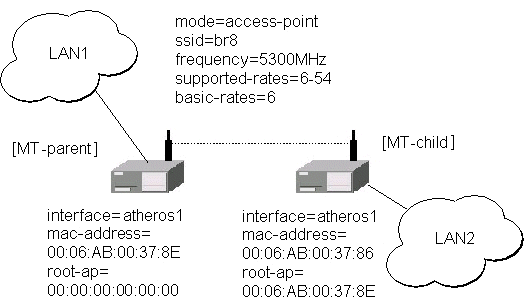
Below are step-by-step configurations for both units. The system identities are set to [MT-parent] and [MT-child], respectively.
[MT-parent] Configuration
Assume you have interfaces ether1 and atheros1 under /interface list.- Enable the Ethernet interface ether1:
/interface enable ether1
- Configure atheros1 interface.
Set mode=bridge, ssid=br8, frequency=5300MHz, and enable atheros1 interface (you can use mode=ap-bridge, if you have Atheros AP License):/interface atheros set atheros1 mode=bridge ssid=br8 frequency=5300MHz disabled=no
- Add bridge interface and specify forwarded protocol list:
/interface bridge add forward-protocols=ip,arp,other disabled=no
- Specify ports atheros1 and ether1 that belong to bridge1:
/interface bridge port set ether1,atheros1 bridge=bridge1
- Assign IP address 10.0.0.217/24 to the bridge1 interface:
/ip address add address=10.0.0.217/24 interface=bridge1
- Set default route to 10.0.0.1:
/ip route add gw=10.0.0.1
[MT-child] Configuration
Assume you have interfaces ether1 and atheros1 under /interface list.- Enable the Ethernet interface ether1:
/interface enable ether1
- Configure atheros1 interface.
Here, you have to specify root-ap MAC address, so the Atheros radio registers to the root AP.
Set mode=bridge, ssid=br8, frequency=5300MHz, root-ap=xx:xx:xx:xx:xx:xx, and enable atheros1 interface (you can use mode=ap-bridge, if you have Atheros AP License):/interface atheros set atheros1 mode=bridge ssid=br8 frequency=5300MHz\ root-ap=xx:xx:xx:xx:xx:xx disabled=no
Here, substitute the xx:xx:xx:xx:xx:xx with MAC address of [MT-parent] atheros interface.
- Check your setup and see, if you have successfully registered to the root AP.
Its MAC address should be listed as parent-ap in the registration table
of atheros interface, for example:
[admin@MT-child] interface atheros> registration-table print
  # INTERFACE                     MAC-ADDRESS       TYPE      PARENT
  0 atheros1                      00:06:AB:00:37:8E parent-ap
[admin@MikroTik] interface atheros>
- Add bridge interface and specify forwarded protocol list:
/interface bridge add forward-protocols=ip,arp,other disabled=no
- Specify ports atheros1 and ether1 that belong to bridge1:
/interface bridge port set ether1,atheros1 bridge=bridge1
- Assign IP address 10.0.0.218/24 to the bridge1 interface:
/ip address add address=10.0.0.218/24 interface=bridge1
- Set default route to 10.0.0.1:
/ip route add gw=10.0.0.1
Note, that both LANs should use IP addresses from the same network 10.0.0.0/24. Both MikroTik routers belong to the same network too. You should be able to ping through the wireless bridge from one LAN to other and to gateway 10.0.0.1.
Supported Hardware
This is the list of Atheros chipset based hardware that is tested to work with MikroTik RouterOS:- Intel 5000 series
- Dlink DWL-A520
© Copyright 1999-2002, MikroTik