CISCO/Aironet 2.4GHz 11Mbps Wireless Interface

Document revision 01-Oct-2001
This document applies to the MikroTik RouterOS V2.4

Overview

The MikroTik RouterOS supports the following CISCO/Aironet 2.4GHz Wireless ISA/PCI/PC Adapter hardware:

For more information about the CISCO/Aironet PCI/ISA adapter hardware please see the relevant User’s Guides and Technical Reference Manuals in .pdf format:

Documentation about CISCO/Aironet Wireless Bridges and Access Points can be found in archives:

Contents of the Manual

The following topics are covered in this manual:

Wireless Adapter Hardware and Software Installation

Software Packages

The MikroTik Router should have the aironet software package installed. The software package file aironet-2.4.y.npk can be downloaded from MikroTik’s web page www.MikroTik.com. To install the package, please upload the correct version file to the router and reboot. Use BINARY mode ftp transfer. After successful installation the package should be listed under the installed software packages list, for example:

[MikroTik] > /sys package print                                                 
  # NAME                   VERSION               BUILD-TIME           UNINSTALL
  0 aironet                2.4                   sep/25/2001 05:08:05 no       
  1 routing                2.4                   sep/25/2001 05:06:07 no       
  2 system                 2.4                   sep/25/2001 05:05:48 no       
  3 ppp                    2.4                   sep/25/2001 05:06:35 no       
  4 ssh                    2.4                   sep/25/2001 05:08:11 no       
  5 pptp                   2.4                   sep/25/2001 05:06:44 no       
[MikroTik] >  

Software License

The 2.4GHz wireless adapters require the 2.4GHz wireless feature license. One license is for one installation of the MikroTik RouterOS, disregarding how many cards are installed in one PC box. The wireless feature is not included in the Free Demo or Basic Software License. The 2.4GHz Wireless Feature cannot be obtained for the Free Demo License. It can be obtained only together with the Basic Software License.

System Resource Usage

Before installing the wireless adapter, please check the availability of free IRQ's and I/O base addresses:

[MikroTik] > /sys resource irq print                                            
 IRQ USED OWNER                                                                 
 1   yes  keyboard                                                              
 2   yes  APIC                                                                  
 3   no                                                                         
 4   yes  serial port                                                           
 5   no
 6   no                                                                         
 7   no                                                                         
 8   no                                                                         
 9   no                                                                         
 10  no                                                                         
 11  yes  backbone                                                              
 12  no                                                                         
 13  yes  FPU                                                                   
 14  yes  IDE 1                                                                 
 15  yes  PCMCIA service                                                        
[MikroTik] > /sys resource io print                                             
 PORT-RANGE            OWNER                                                    
 20-3F                 APIC                                                     
 40-5F                 timer                                                    
 60-6F                 keyboard                                                 
 80-8F                 DMA                                                      
 A0-BF                 APIC                                                     
 C0-DF                 DMA                                                      
 F0-FF                 FPU                                                      
 1F0-1F7               IDE 1                                                    
 2F8-2FF               serial port                                              
 3C0-3DF               VGA                                                      
 3E0-3E1               PCMCIA service                                           
 3F6-3F6               IDE 1                                                    
 3F8-3FF               serial port                                              
 4000-4007             IDE 1                                                    
 4008-400F             IDE 2                                                    
 6300-631F             backbone                                                 
[MikroTik] >  

Installing the Wireless Adapter

The basic installation steps of the wireless adapter should be as follows:
  1. Check the system BIOS settings and make sure you do not have the 'PnP OS Installed' set to 'Yes'. If you have this setting, make sure it is set to 'No'.
  2. Check the system BIOS settings for peripheral devices, like, Parallel or Serial communication ports. Disable them, if you plan to use IRQ's assigned to them by the BIOS.
  3. Set the DIP switches on the ISA board according to the following plan:
    DIP switch #6 to 'on' (non-PnP mode)
    Use the DIP switches #1,2,3 to select the IRQ number Use the DIP switches #4,5 to select the I/O Base Address
Please note, that not all combinations of I/O base addresses and IRQ's may work on your motherboard. It is recommended that you choose one IRQ that is not used in your system, and then try an acceptable I/O base address setting. As it has been observed, that the IRQ 5 and I/O 0x300 or 0x180 work in most cases.

Loading the Driver for the Wireless Adapter

PCI and PC (PCMCIA) cards do not require a 'manual' driver loading, since they are recognized automatically by the system and the driver is loaded at the system startup.

The ISA card requires the driver to be loaded by issuing the following command:

[MikroTik]> driver add name=pc-isa io=0x180
[MikroTik]> driver print
Flags: I - invalid, D - dynamic 
  #   DRIVER                            IRQ IO         MEMORY     ISDN-PROTOCOL
  0 D PCI NE2000                                                               
  1   Aironet ISAxx00                       0x180
[MikroTik] driver>

There can be several reasons for a failure to load the driver:

Wireless Interface Configuration

If the driver has been loaded successfully (no error messages), and you have the required 2.4GHz Wireless Software License, then the CISCO/Aironet 2.4GHz Wireless interface should appear under the interfaces list with the name pcn, where n is 1,2,... You can change the interface name to a more descriptive one using the 'set' command. To enable the interface, use the 'enable' command:

[MikroTik] interface> print
Flags: X - disabled, D - dynamic 
  #   NAME                 MTU   TYPE                                          
  0   backbone             1500  ether                                         
  1 X pc1                  1500  pc                                            
[MikroTik] interface> set 1 name aironet
[MikroTik] interface> enable aironet
[MikroTik] interface> print
Flags: X - disabled, D - dynamic 
  #   NAME                 MTU   TYPE                                          
  0   backbone             1500  ether                                         
  1   aironet              1500  pc                                            

More configuration and statistics parameters can be found under the '/interface pc' menu:

[MikroTik] interface> pc
[MikroTik] interface pc> print
Flags: X - disabled 
  0   name=aironet mtu=1500 mac-address=00:40:96:37:70:68 arp=enabled 
      mode=infrastructure rts-threshold=2312 fragmentation-threshold=2312 
      tx-power=100 rx-diversity=right tx-diversity=right long-retry-limit=16 
      short-retry-limit=16 frequency=2427MHz bitrate=auto ap1=00:40:96:25:83:63 
      ap2=00:40:96:25:83:63 ap3=00:40:96:25:83:63 ap4=00:40:96:25:83:63 
      ssid1=tsunami ssid2="" ssid3="" modulation=cck 
      client-name=MikroTik_0 beacon-period=100 join-net=10s 
      firmware-version=PC4800A 3.85 

[MikroTik] interface pc>

Argument description:

number - Interface number in the list
name - Interface name
mtu - Maximum Transmit Unit (256...2048 bytes). Deafault value is 1500 bytes.
mode - Operation mode of the card (infrastructure / ad-hoc)
rts-threshold - RTS threshold
fragmentation-threshold - Fragmentation threshold
tx-power - Transmit power in mW
rx-diversity - Receive diversity (both / default / left / right)
tx-diversity - Transmit diversity (both / default / left / right)
long-retry-limit - Long retry limit
short-retry-limit - Short retry limit
frequency - Channel frequency (2412MHz / 2422MHz / ... / 2484MHz)
bitrate - Data rate (11Mbit/s / 1Mbit/s / 2Mbit/s / 5.5Mbit/s / auto)
ap1 - Access Point 1
ap2 - Access Point 2
ap3 - Access Point 3
ap4 - Access Point 4
ssid1 - Service Set Identifier 1
ssid2 - Service Set Identifier 2
ssid3 - Service Set Identifier 3
modulation - Modulation mode (cck / default / mbok)
client-name - Client name
join-net - Beaconing period
arp - Address Resolution Protocol (disabled / enabled / proxy-arp)

You can monitor the status of the wireless interface:

[MikroTik] interface pc> monitor 0
              quality: 0
             strength: 0
         current-rate: 11Mbit/s
    current-frequency: 2437MHz
         synchronized: no
           associated: no
                 ssid: tsunami
         access-point: FF:FF:FF:FF:FF:FF
    access-point-name:
         error-number: 0                 

[MikroTik] interface pc>

If the wireless interface card is not registered to an AP, the green status led is blinking fast.

To set the wireless interface for working with an IEEE 802.11b access point (register to the AP), you should set the following parameters:

All other parameters can be left as default. To configure the wireless interface for registering to an AP with ssid "mt", it is enough to change the argument value of ssid1 to "mt":

[MikroTik] interface pc> set 0 ssid1 mt
[MikroTik] interface pc> monitor 0
              quality: 63
             strength: 131
         current-rate: 11Mbit/s
    current-frequency: 2412MHz
         synchronized: yes
           associated: yes
                 ssid: mt
         access-point: 00:40:96:00:06:72
    access-point-name: Gulf
         error-number: 0                 

[MikroTik] interface pc>

If the wireless interface card is registered to an AP, the green status led is blinking slow.

Wireless Troubleshooting

Wireless Network Applications

Two possible wireless network configurations are discussed in the following examples:

Point-to-Multipoint Wireless LAN

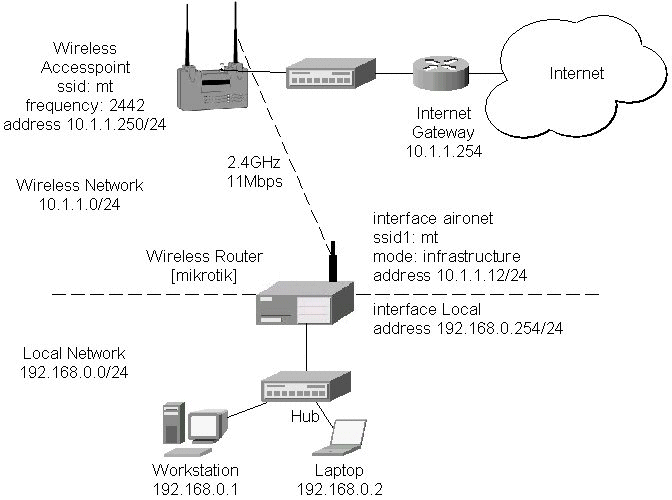
Let us consider the following network setup with CISCO/Aironet Wireless Access Point as a base station and MikroTik Wireless Router as a client:

Point-to-Multipoint

The access point is connected to the wired network's HUB and has IP address from the network 10.1.1.0/24. The minimum configuration required for the AP is:

  1. Setting the Service Set Identifier (up to 32 alphanumeric characters). In our case we use ssid "mt".
  2. Setting the allowed data rates at 1-11Mbps, and the basic rate at 1Mbps.
  3. Choosing the frequency, in our case we use 2442MHz.
  4. Setting the identity parameters: ip address/mask and gateway. These are required if you want to access the AP remotely using telnet or http.

Reminder! Please note, that the AP is not a router! It has just one network address, and is just like any host on the network. It resembles a wireless-to-Ethernet HUB or bridge. The AP does not route the IP traffic!

The minimum configuration for the MikroTik router's CISCO/Aironet wireless interface is:

  1. Setting the Service Set Identifier to that of the AP, i.e., "mt"
  2. Setting the Operation Mode to "infrastructure"
[MikroTik] interface pc> set 0 ssid1 mt mode infrastructure
[MikroTik] interface pc> monitor 0
              quality: 62
             strength: 129
         current-rate: 11Mbit/s
    current-frequency: 2442MHz
         synchronized: yes
           associated: yes
                 ssid: mt
         access-point: 00:40:96:00:06:72
    access-point-name: Gulf
         error-number: 0                 
[MikroTik] interface pc>

The frequency argument does not have any meaning, since the frequency of the AP is used. The IP addresses assigned to the wireless interface should be from the network 10.1.1.0/24, e.g.:

[MikroTik] ip address> add address 10.1.1.12/24 interface aironet
[MikroTik] ip address> print                                                        
Flags: X - disabled, I - invalid, D - dynamic 
  #   ADDRESS            NETWORK         BROADCAST       INTERFACE             
  0   10.1.1.12/24       10.1.1.0        10.1.1.255      aironet               
  1   192.168.0.254/24   192.168.0.0     192.168.0.255   Local                 
[MikroTik] ip address>

The default route should be set to the gateway router 10.1.1.254 (not the AP 10.1.1.250 !):

[MikroTik] ip route> add gateway=10.1.1.254
[MikroTik] ip route> print                                                     
Flags: X - disabled, I - invalid, D - dynamic, R - rejected 
  #    TYPE    DST-ADDRESS        NEXTHOP-S... GATEWAY     DISTANCE INTERFACE  
  0    static  0.0.0.0/0          A            10.1.1.254  1        aironet    
  1 D  connect 192.168.0.0/24     A            0.0.0.0     0        Local      
  2 D  connect 10.1.1.0/24        A            0.0.0.0     0        aironet    
[MikroTik] ip route> 
Point-to-Point Wireless LAN

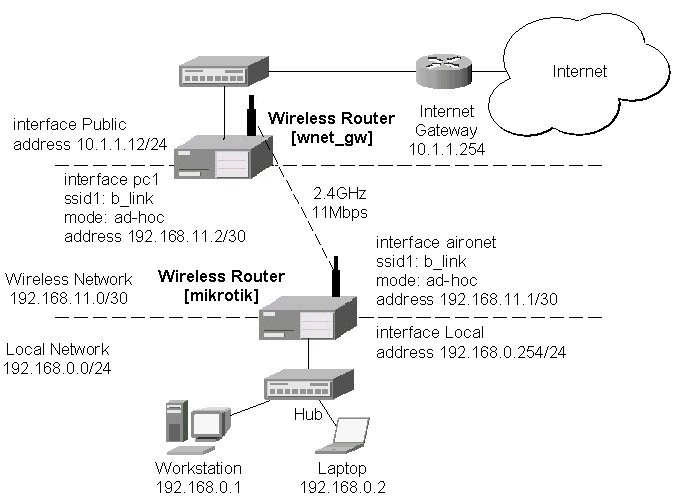
Let us consider the following point-to-point wireless network setup with two MikroTik Wireless Routers:

Point-to-Point

To establish a point-to-point link, the configuration of the wireless interface should be as follows:

The following command should be issued to change the settings for the pc interface:

[MikroTik] interface pc> set 0 mode ad-hoc ssid1 b_link frequency 2442MHz bitrate auto
[MikroTik] interface pc> monitor 0
              quality: 0
             strength: 0
         current-rate: 11Mbit/s
    current-frequency: 2412MHz
         synchronized: no
           associated: no
                 ssid: b_link
         access-point: FF:FF:FF:FF:FF:FF
    access-point-name:
         error-number: 0                 
[MikroTik] interface pc>

For 10 seconds (this is set by the argument join_net) the wireless card is looking for a network to join. The status of the card is not synchronized, and the green status light is blinking fast. If the card cannot find a network, the card creates its own network. The status of the card becomes 'synchronized', and the green status led becomes solid. The monitor command shows the new status and the MAC address generated:

[MikroTik] interface pc> monitor 0
              quality: 62
             strength: 129
         current-rate: 11Mbit/s
    current-frequency: 2412MHz
         synchronized: yes
           associated: no
                 ssid: b_link
         access-point: 16:01:0B:02:17:00
    access-point-name:
         error-number: 0                 
[MikroTik] interface pc>

The other router of the point-to-point link requires only the operation mode set to 'ad-hoc' and the System Service Identificator set to "b_link". The channel frequency will be used the same as on the first router, which has created the wireless network. If the radios are able to establish RF connection, the status of the card should become 'synchronized', and the green status led become solid immediately after entering the command:

[wnet_gw] interface pc> set 0 mode ad-hoc ssid1 b_link frequency 2412MHz bitrate auto
[wnet_gw] interface pc> monitor 0
              quality: 58
             strength: 122
         current-rate: 11Mbit/s
    current-frequency: 2412MHz
         synchronized: yes
           associated: no
                 ssid: b_link
         access-point: 16:01:0B:02:17:00
    access-point-name:
         error-number: 0                 
[wnet_gw] interface pc> 

As we see, the MAC address under the 'access-point' parameter is the same as generated on the first router.

If desired, IP addresses can be assigned to the wireless interfaces of the pint-to-point link routers using a smaller subnet, say 30-bit one:

[MikroTik] ip address> add address 192.168.11.1/30 interface aironet
[MikroTik] ip address> print
Flags: X - disabled, I - invalid, D - dynamic 
  #   ADDRESS            NETWORK         BROADCAST       INTERFACE             
  0   192.168.11.1/30    192.168.11.0    192.168.11.3    aironet               
  1   192.168.0.254/24   192.168.0.0     192.168.0.255   Local                 
[MikroTik] ip address>

The second router will have address 192.168.11.2. The network connectivity can be tested by using ping or bandwidth test:

[wnet_gw] ip address> add address 192.168.11.2/30 interface pc1 
[wnet_gw] ip address> print 
Flags: X - disabled, I - invalid, D - dynamic 
  #   ADDRESS            NETWORK         BROADCAST       INTERFACE             
  0   192.168.11.2/30    192.168.11.0    192.168.11.3    pc1
  1   10.1.1.12/24       10.1.1.0        10.1.1.255      Public
[wnet_gw] ip address> /ping 192.168.11.1
192.168.11.1 pong: ttl=255 time=3 ms
192.168.11.1 pong: ttl=255 time=1 ms
192.168.11.1 pong: ttl=255 ping interrupted
4 packets transmitted, 4 packets received, 0% packet loss
round-trip min/avg/max = 1/1.5/3 ms
interrupted
[wnet_gw] ip address> /tool btest 192.168.11.1 protocol tcp 
connecting
current = 4.6Mbps   10secavg = 4.6Mbps   totalavg = 4.6Mbps
current = 4.7Mbps   10secavg = 4.6Mbps   totalavg = 4.6Mbps
current = 4.3Mbps   10secavg = 4.6Mbps   totalavg = 4.6Mbps
current = 4.5Mbps   10secavg = 4.5Mbps   totalavg = 4.5Mbps
current = 4.6Mbps   10secavg = 4.5Mbps   totalavg = 4.5Mbps
[wnet_gw] ip address> /tool btest 192.168.12.1 protocol udp size 1500
connecting
current = 1500.0kbps   10secavg = 1500.0kbps   totalavg = 1500.0kbps
current = 2.0Mbps   10secavg = 1775.3kbps   totalavg = 1775.3kbps
current = 2.9Mbps   10secavg = 2.1Mbps   totalavg = 2.1Mbps
current = 4.4Mbps   10secavg = 2.7Mbps   totalavg = 2.7Mbps
current = 5.6Mbps   10secavg = 3.3Mbps   totalavg = 3.3Mbps
current = 5.6Mbps   10secavg = 3.6Mbps   totalavg = 3.6Mbps
current = 5.6Mbps   10secavg = 3.9Mbps   totalavg = 3.9Mbps
current = 5.6Mbps   10secavg = 4.1Mbps   totalavg = 4.1Mbps
[wnet_gw] ip address> 


© Copyright 1999-2001, MikroTik