MikroTik RouterOS V2.4 Java Console Manual
Document revision 25-Sep-2001
This document applies to the V2.4 of the MikroTik RouterOS
Overview
The Java Console is used for accessing the MikroTik Router configuration
and management features using graphical user interface.
To access the MikroTik RouterOS Java Console, you will need IE5.0 or Netscape 4.0
or higher with Java 2 Runtime Environment (JRE) plugin installed.
Please download the JRE v1.2 or higher and install it on your workstation
to enable the Java Console access.
This manual describes the general Java console operation principles.
Contents of the Manual
The following topics are covered in this manual:
Overview of Common Functions
When connecting to the MikroTik router via http (TCP port 80),
the router's Welcome Page is displayed in the web browser, for example:

By clicking on the Java Console icon you can open the Java console with the login window.
Use the username and password to log on to the router, for example:
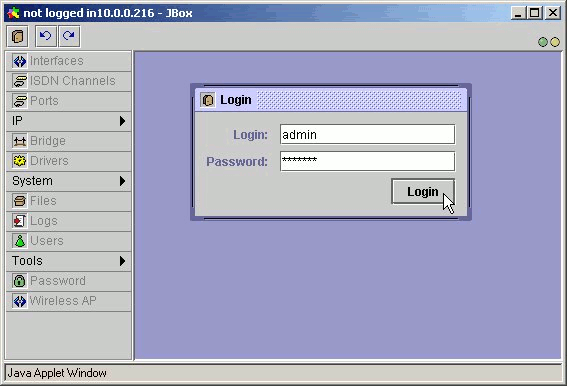
The Java Console uses TCP port 3986.
After logging on to the router you can work with the MikroTik router's configuration through the Java console
and perform the same tasks as using the regular console:
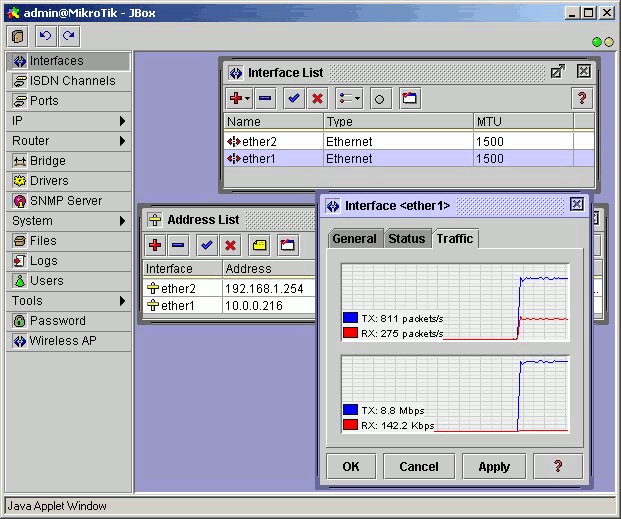
You can use the menu bar to navigate through the router's configuration menus,
open configuration windows. By double clicking on some list items in the windows
you can open configuration windows for the specific items, and so on.
There are some hints for using the Java Console:
- To open the required window, simply click on the corresponding menu item.
- To add a new entry you should click on the icon in the corresponding window.
- To remove an existing entry click on the icon.
- To enable an item, click on the icon.
- To disable an item, click on the icon.
- To make or edit a comment for a selected item, click on the icon.
- To refresh the window, click on the icon.
- To undo an action, click on the icon above the main menu.
- To redo an action, click on the icon above the main menu.
- To logout from the Java Console, click on the icon.
Troubleshooting for Java Console
- I cannot open the Java box
The MikroTik Java console requires the Java2 web browser plug-in.
You may download this from http://java.sun.com/j2se/1.3/.
Java2 supports Windows 95/98/NT & Solaris & Linux.
- I have installed Java2 and the MikroTik Java console still does not work.
Run the "Java Plug-in Control Panel" from the "Programs" pull-down menu (standard windows "Program" menu):
- In "Java Plug-in Control Panel" window, under the "Basic" tab, select "Enable Java Plug-in."
Under the "Advanced" tab, select "JRE 1.2 in ..." and make sure the path is correct.
- In "Proxies" window, make sure that you are not using a proxy.
- I still cannot open the Java Console
The Java Console uses TCP port 3986. Make sure you have access to it through the firewall.
© Copyright 1999-2001, MikroTik